
So you have a WooCommerce store, and you're looking to set up a referral program. A referral program is one of the most effective word-of-mouth growth strategies available to WooCommerce store owners — here's what you need to know before getting started.
How do you get it done? You'll need to do three things:
- Sign up for ReferralCandy,
- Install the ReferralCandy for WooCommerce plugin on your WordPress install (which already has the WooCommerce plugin up and running)
- Setup your referral discount, referral emails, landing pages, and referral widgets
- (Optional + Recommended) Promote your referral program via your marketing channels
In this blog post, we’ll focus on the first two parts and we've broken down the setup process into 4 parts:
- Referral Candy Signup Process
- Installing Referral Candy on WooCommerce
Method 1: From your WordPress dashboard (Recommended)
Method 2: From WordPress.org - Integrating ReferralCandy with WooCommerce
- Configuration
Part #1. Signup up for ReferralCandy (14-day free trial)
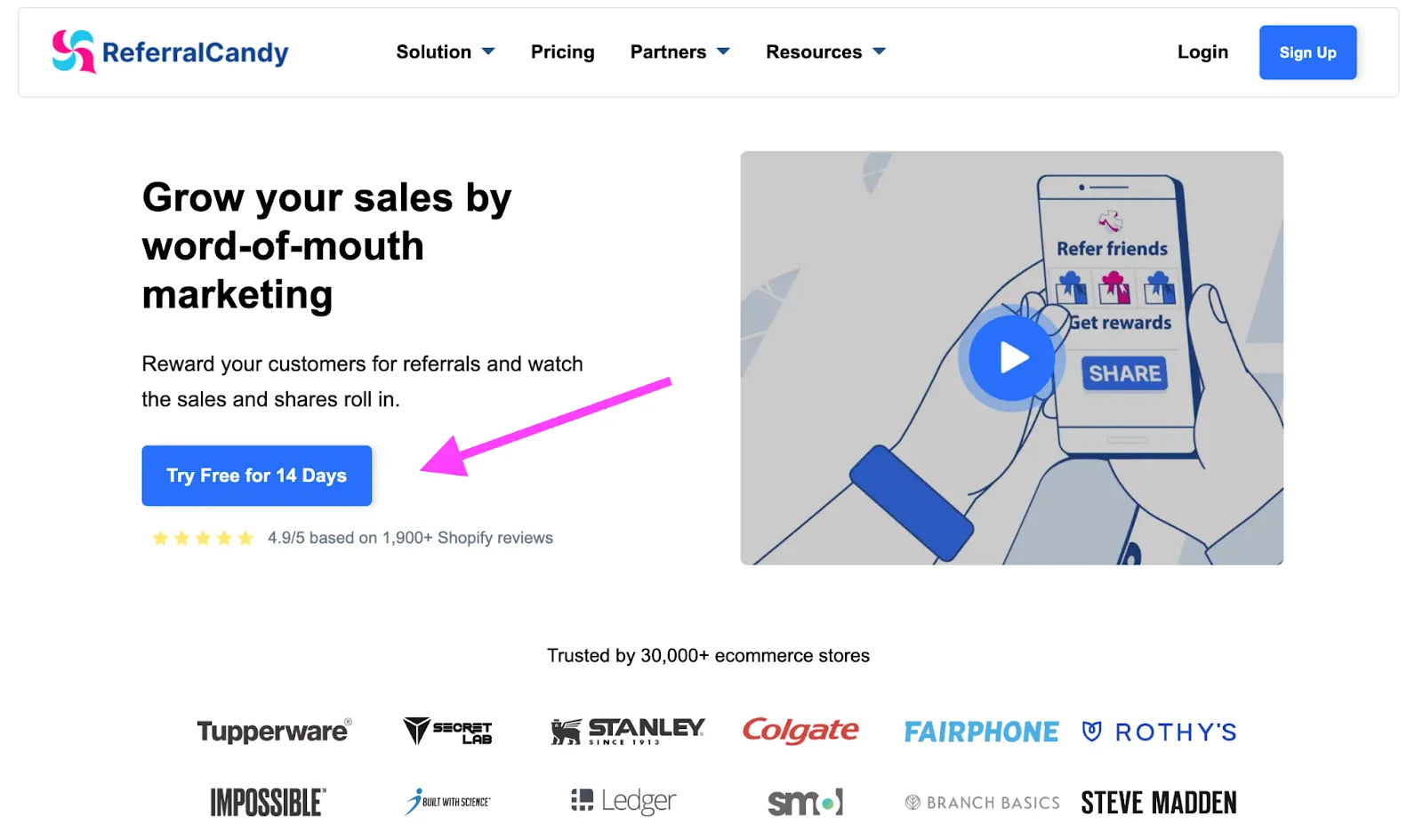
- Head on down to ReferralCandy.com. Select one of our plans and sign up for a free trial:
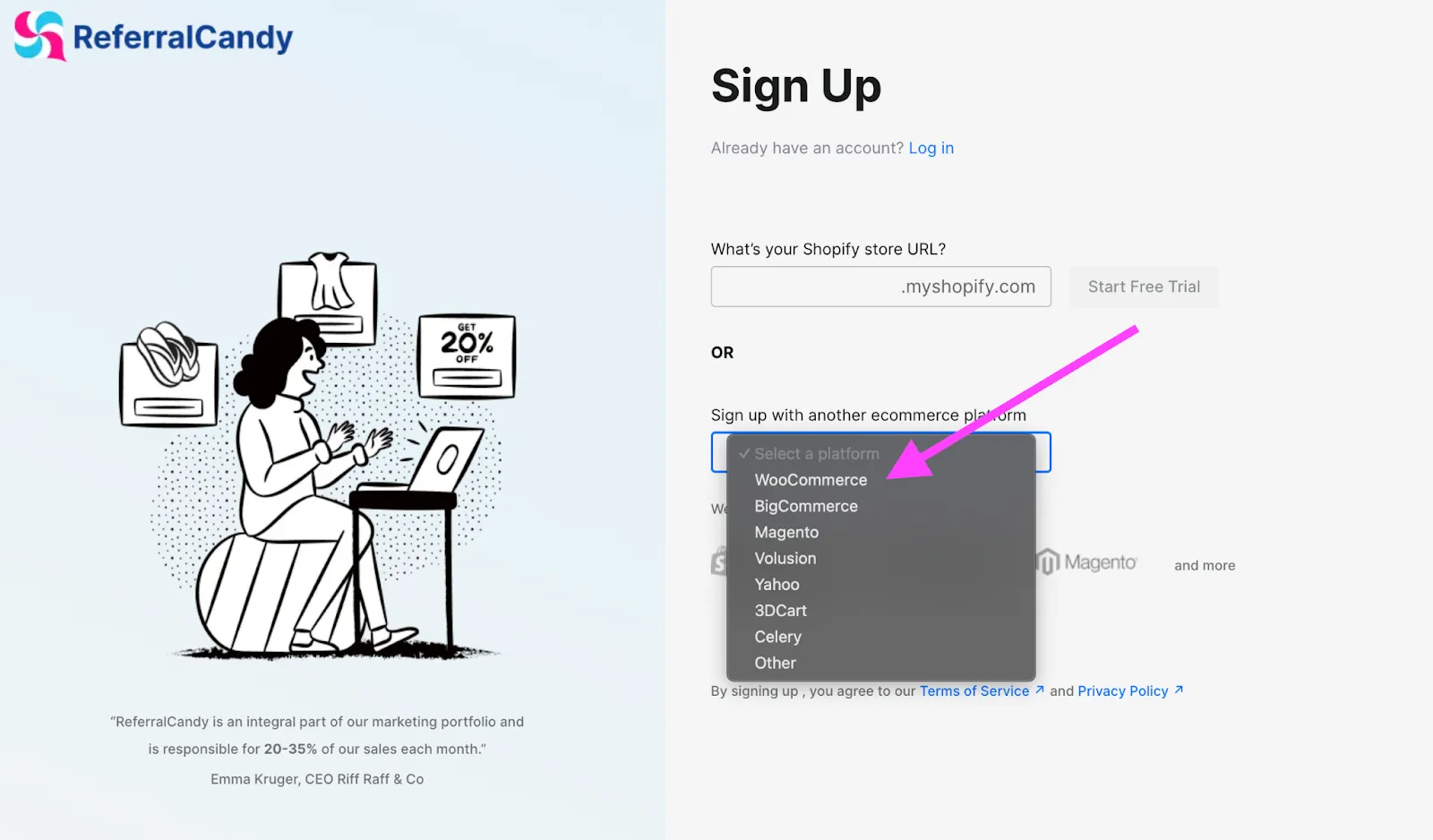
- Select WooCommerce as your platform and complete the remaining steps until you reach the ReferralCandy Dashboard
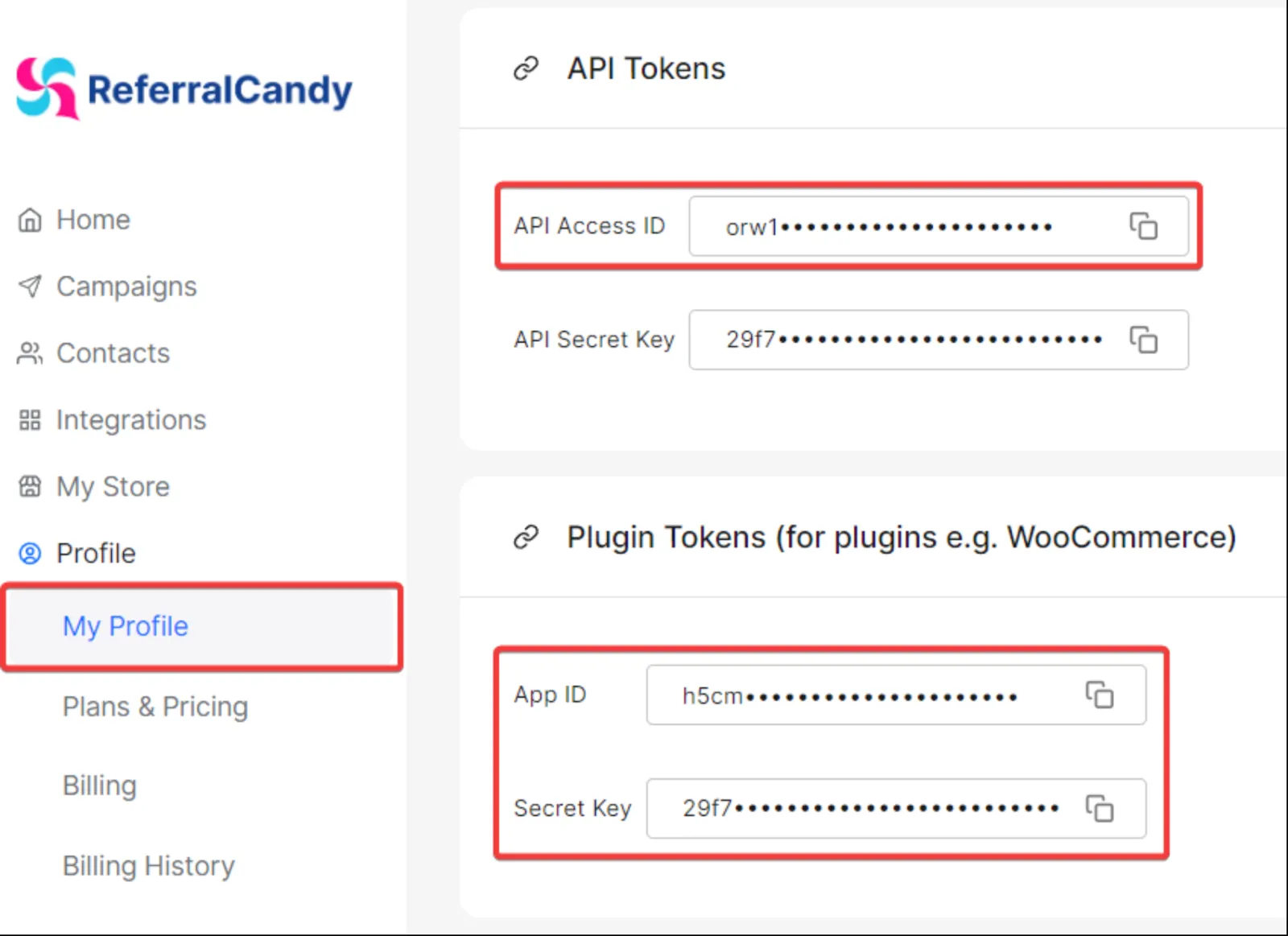
- From the ReferralCandy dashboard side menu, select Profile > My Profile
- Navigate to the API Tokens and Plugin Tokens section, like in the screenshot below
- You'll now want to either leave this tab open or take note of the 3 highlighted items
- API Access ID
- App ID
- Secret Key
Part #2. Installing ReferralCandy on WooCommerce
There are 2 methods to install the ReferralCandy plugin; you only need to accomplish one of these methods before proceeding to Part#3
Method 1: From your WordPress dashboard (Recommended)
- Go to Plugins > Add New Plugin
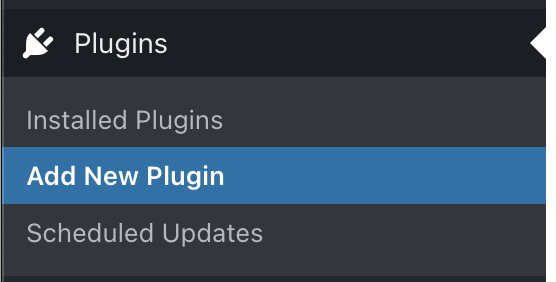
- Once there, search for ReferralCandy
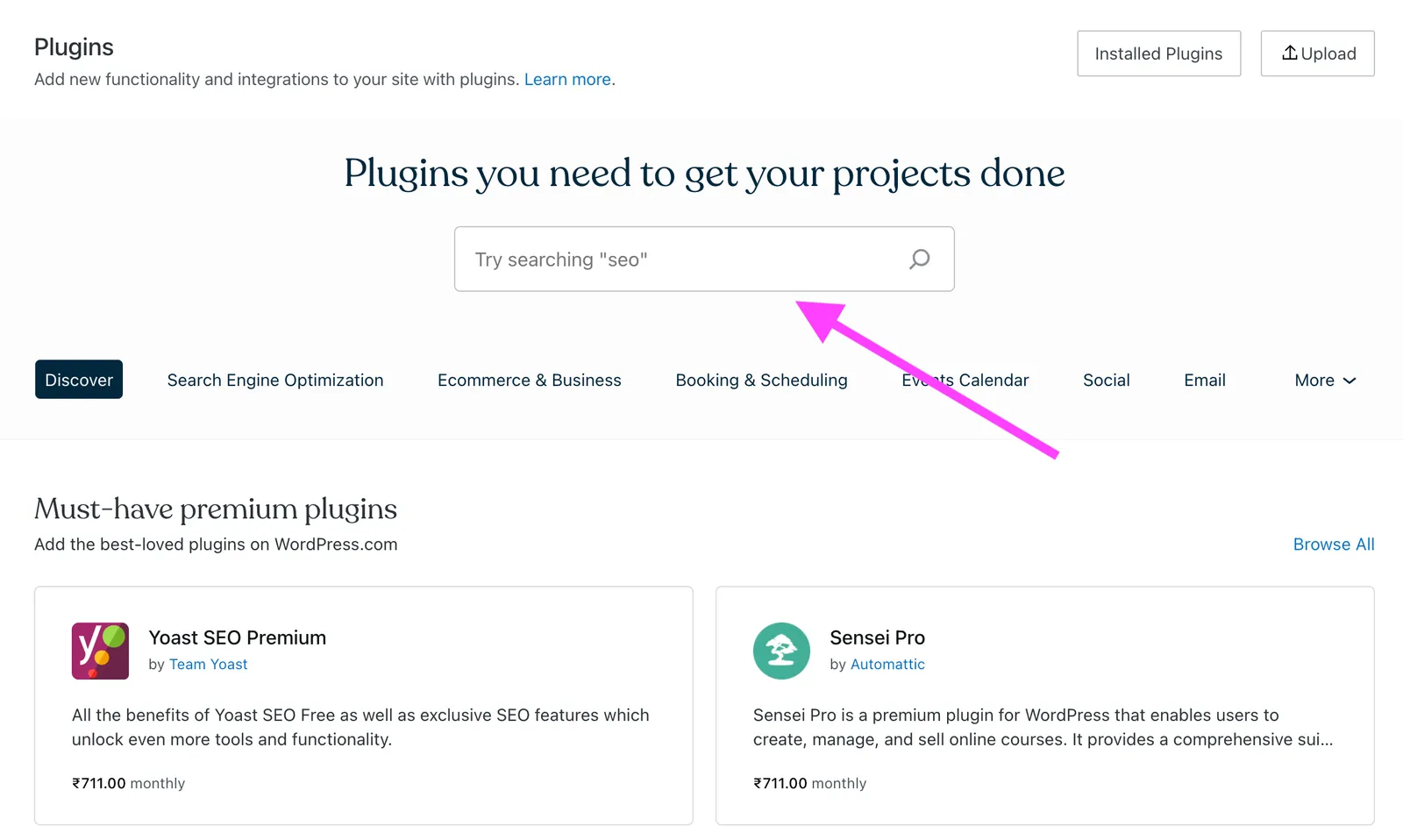
- Which will serve up this search result. Click on Install and activate, then proceed to Part#3
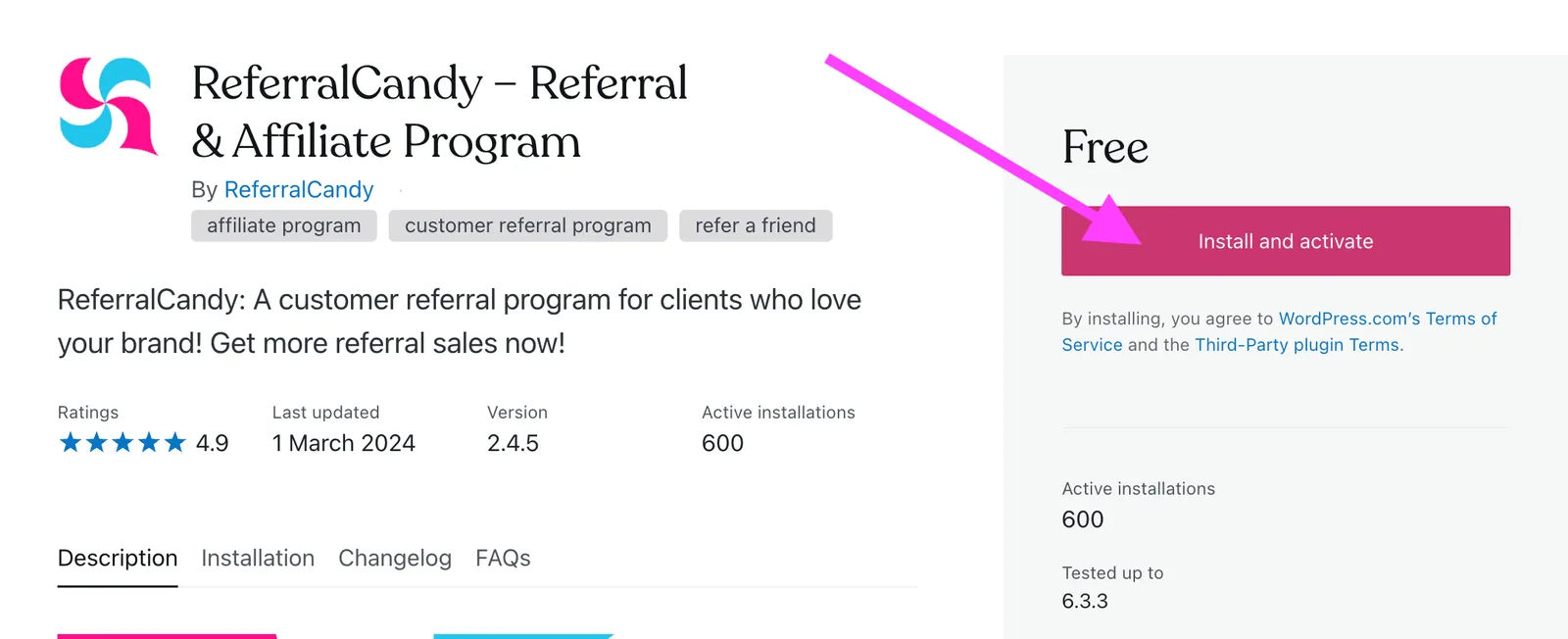
Method 2: From WordPress.org
- Download the latest version zip file here
- On your WordPress dashboard, go to Plugins > Add New Plugin
- Click on Upload to upload the zip file
4. Once uploaded, the installation will begin automatically, Please proceed to Part#3
Part #3. Integrating ReferralCandy with WooCommerce
- Once installation is completed, you'll see the following page: click on Manage plugin
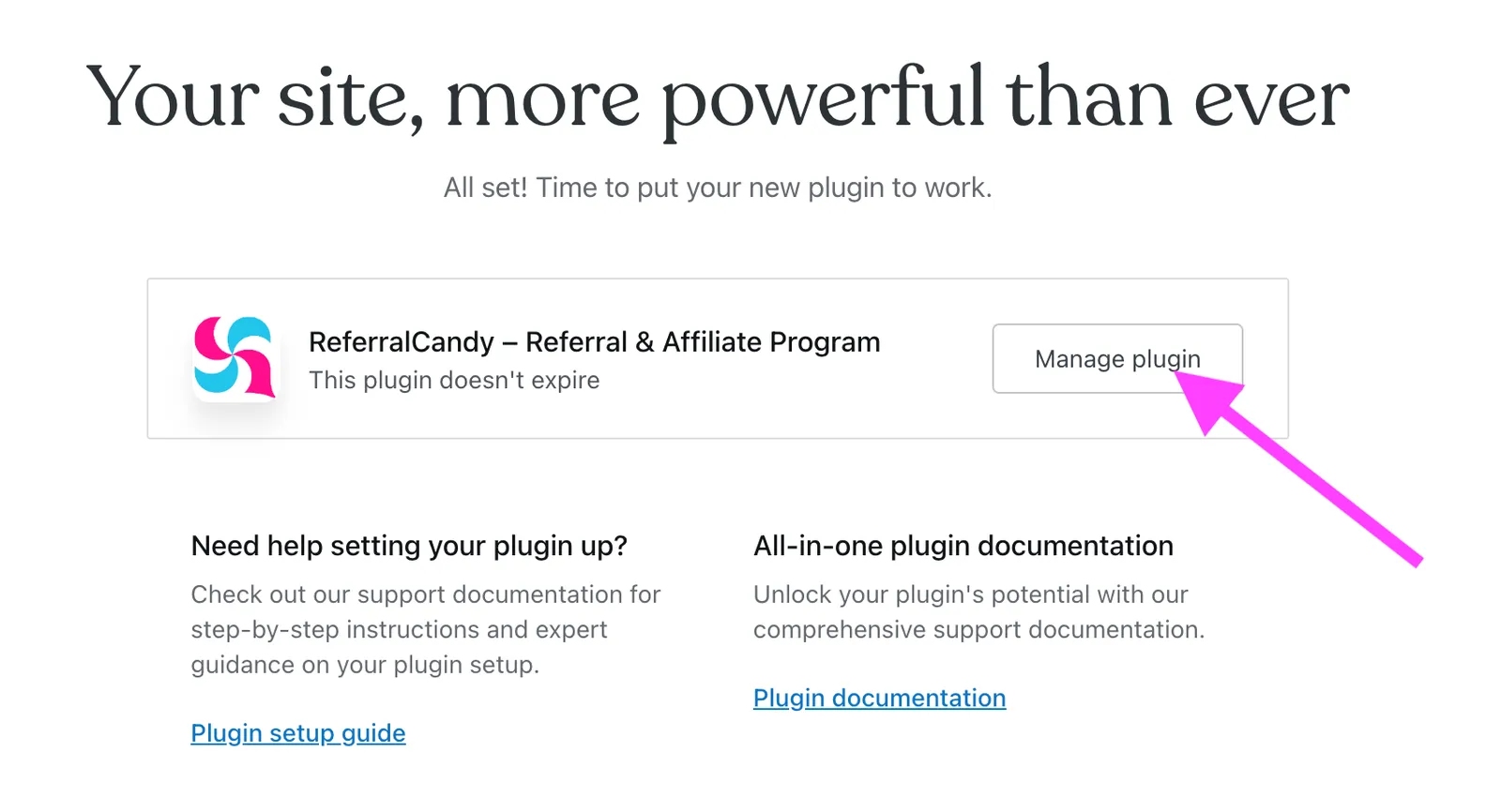
- You'll be brought directly to the plugin's Integration page
- Scrolling down, you'll find the 3 input boxes you can paste in the API/Plugin tokens you saved from Part#1
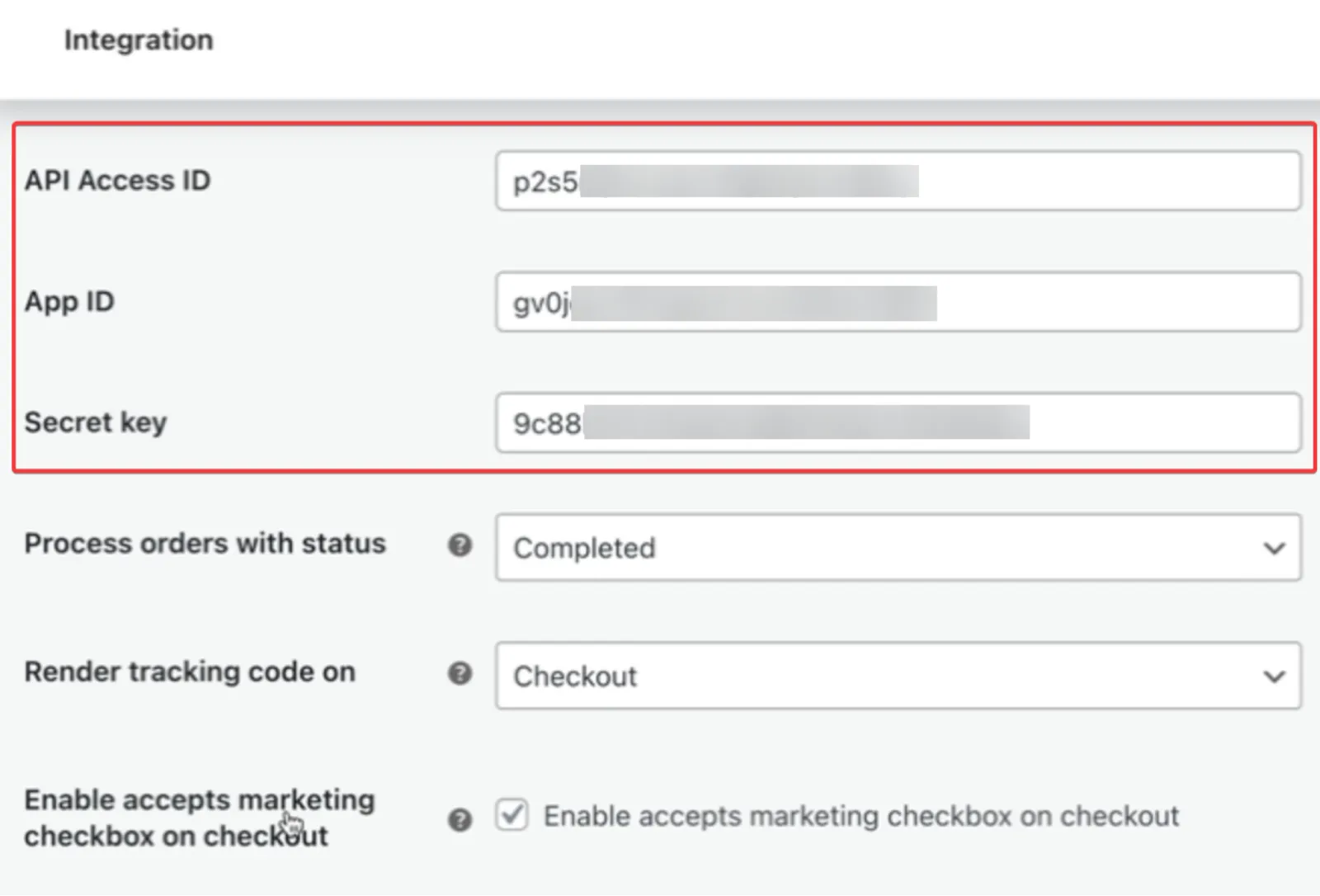
4. Don't forget to click Save Changes at the bottom of the page
Part #4. Configuration
In this article we've also highlighted the different configuration options available via the plugin: WooCommerce Article
And you're done with the integration!
[Note: ReferralCandy's system will need to detect a purchase at your store before it can confirm that integration is successful.]
The ReferralCandy plugin is available for WooCommerce 2.3.3 or higher. If you use an older version, we recommend one of our manual integration methods.
Not only can you launch a referral program with ReferralCandy, but also effective affiliate programs.
And with that, you've hooked up your referral WooCommerce store! 🎉
Congrats!
From here on, there's still more that you'll want to do. Beyond this, you'll want to set the referral conditions, the rewards themselves, the Emails & Pages, and referral widgets on your store itself.
You'll also want to promote your referral program through your various marketing channels so that you get more reach.
Here are some relevant reads to help you along:
- How To Setup Your Referral Program's Incentives
- How To Write Great Emails Asking For Referrals
- How To Promote Your Referral Program
- 30+ Best Shopify Themes In 2025
May it rain referrals on your store! 🤓 Want to grow your WooCommerce store through referrals? Explore our pricing and plans to get started today.